While Microsoft has made it more difficult to sign into Windows using a local account. If you are someone who prefers to use a local user account rather than a Microsoft account. In our quick notes we provide you with a number of different options to use a local account.
Whats the difference between a Microsoft account and a local user account?
Unlike a Microsoft account, a local user account will store a users profile directly on the computer. Which will include any system settings, desktop themes, passwords, user created content, documents, photos, or media files.
The advantage of this is that what’s on your computer will be private to you. However, the disadvantage is that if you jump to a new computer, you will have to manually transfer files and settings yourself. Something you wont need to do if you use a Microsoft account.
Why you might want to use a local user account.
The problem is that Microsoft integrated their cloud storage solution with having a Microsoft account. They then started to make it more and more difficult to create local user accounts in Windows. Which in turn forced more users to switch to using a Microsoft account.
While this may not sound too bad, as you will get 5GB of free online storage. You have to remember that because your data is now sitting on a Microsoft cloud server. In theory Microsoft also now has full access to everything you do or create.
Which in the age of AI, where companies like Microsoft are trying to teach their AI systems by scraping large bodies of data. Using a Microsoft account has the potential for personal thoughts, ideas and works being stolen and used by AI without your consent or knowledge.
Note: At the time of posting, the following options should work with both the Home and Pro versions of Windows 11. However, this could well change over time as it seems that Microsoft are set on ultimately preventing the creation of local accounts.
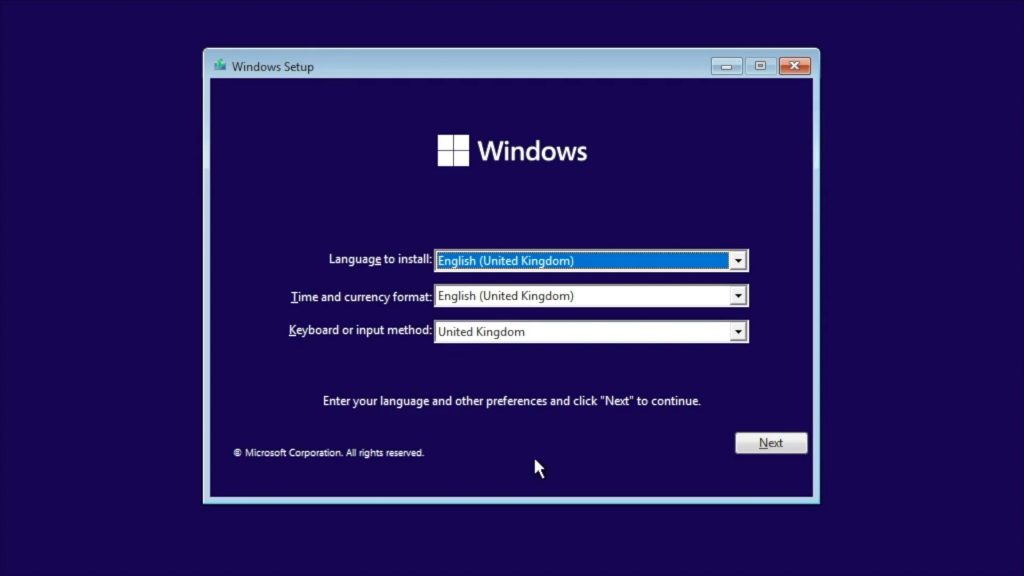
Start your new Window computer and wait for the setup wizard to load.
Follow the on screen in the setup wizard until you get to the “Lets add your Microsoft account” page.
At this point load a terminal window by pressing and holding down Shift and pressing F10 on your keyboard.
Note: On some computers, particularly laptops, you may have to press the FN key, Shift and F10.
Now at the command prompt of the terminal window, type:
start ms-cxh:localonly
When you press enter on the keyboard, a “Create User account for this PC” window will appear.
Enter a user name and password for the local account you will be creating. The account you create will also be a local administrators accounts for the PC.
When you click on Next, your computer will jump to the Privacyoptions screen.
You can now finish choosing your options for setting up your computer.
Note: If you are installing Windows onto a computer without a preexisting operating system. You will need to get hold of a Windows product key, or install Windows and then when Windows is installed, buy a license online directly from Microsoft.
However, if you are reinstalling Windows on a pre-built computer from a big brand manufacturers like Dell or HP. A Windows product key will be embedded into the computers UEFI firmware (BIOS). So you will not see a sticker on the computer with a Windows product key.
If you are already up and running with Windows. You might be able to recover your Windows product key using a terminal command. Please see link.
Under the heading Download Windows 11 Disk Image (ISO) for x64 devices, choose the: Windows 11 (Multi-edition ISO for x64 devices).
Click Confirm.
Down load the Rufus application and run it.
Note: Rufus is a self executable file, meaning that it does not need to be downloaded to your computer before you run it. So if you intend to keep it on your computer simply copy it to the applications folder on your PC.
Insert a blank 8GB flash drive into your computer as the flash drive will be wiped.
In Rufus click on Select and choose the ISO image of Windows you downloaded to your computer.
Most of the other options in Rufus can be left on their defaults. However, check Target System is using UEFI for a more modern computer, or BIOS for an older computer.
Now click on Start.
You might see a Window pop up called Windows User Experience. Which will simply show all the things you can customise for your Windows install. Make sure that both the options, Remove requirement for an online Microsoft account and Create a local account with User name are ticked.
In Create a local account with User name, you can set a new default user name that will automatically get created during setup. Or Rufus will pick the user account name of the computer it is currently loaded on.
Click OK and allow Rufus to create an install disk on your flash drive.
Once complete you can remove the flash drive from your computer, and use it to install Windows 11 on another computer.
Right click your mouse and create a DWORD (32-bit) value called:
BypassNRPO
Give the key a value of 1.
Close the Registry editor.
Now at the command prompt, type:
ipconfig /release
Note: This command will release the IP address that your router may have given Windows to use. Which should mean that the computer will not be connected to the internet.
Press Enter on your keyboard.
Keep the Command Prompt window open, but continue with the installation of Windows until you get to the screen which says “Lets connect you to the a network“.
Choose “I don’t have internet” and continue with the install.
At the end of the installation process before you are asked to reboot, return to the Command Prompt and type:
ipconfig /renew
Note: This command will request a new IP address from your router, which will put Windows back onto your home network.
Press Enter on your keyboards, and close the Command Prompt.
Allow the installation process to restart your computer.
You should be shown another setup wizard, which allows you to create a localuseraccount.


Add comment