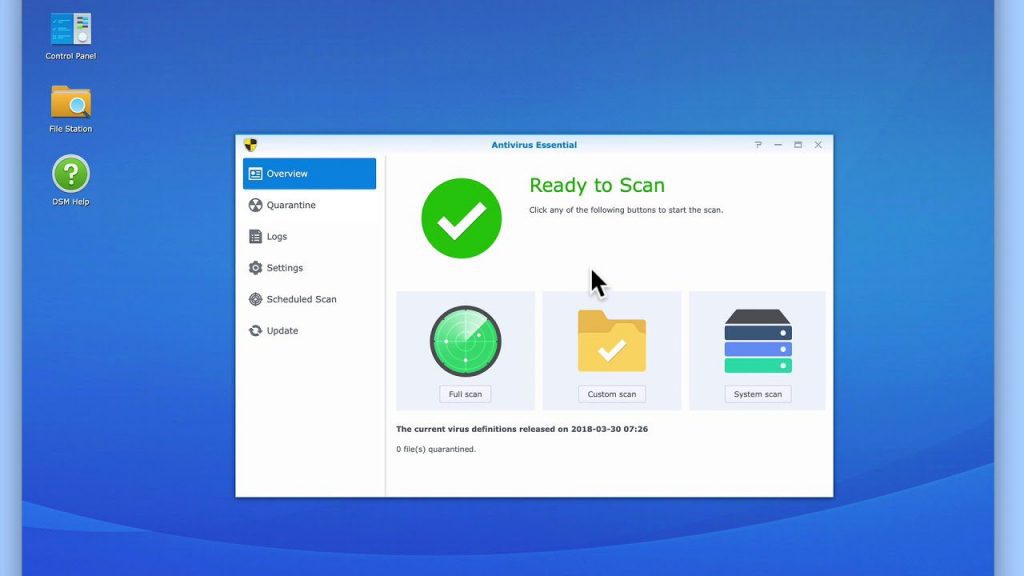
In this video, we take a look at how to install and configure Synology’s Antivirus Essential. We will start this video by first installing the package, and then review its settings. Finally, we will configure the application so that it will automatically scan our NAS for viruses.
Note: We have found that sometimes Antivirus Essential will flag a false positive. Particularly if you store Windows installation files on your NAS. So, because Antivirus Essential will quarantine files that it suspects. We recommend that you do not rely on Synology’s Antivirus Essential as your only means to test for viruses.
Quick reference notes:
- Log into DSM with administrators privileges.
- Open Package Center.
- Locate and install Antivirus Essential.
- Open Antivirus Essential and from the sidebar choose Schedule Scan.
- Select Create.
- Choose Full Scan.
- In the Date field choose Daily.
- for the Time field select the time you want the scan to start.
- Select OK.
Note – We recommend that you complete a full scan of your NAS before you make a backup of your data. This will help to ensure that you do not inadvertently backup an infected file.
Additional resources required:
- N/A
Reference materials:
- Synology Support – Antivirus Essential.
- mydoodads article – How to setup and configure a Synology NAS (DSM7) series.