





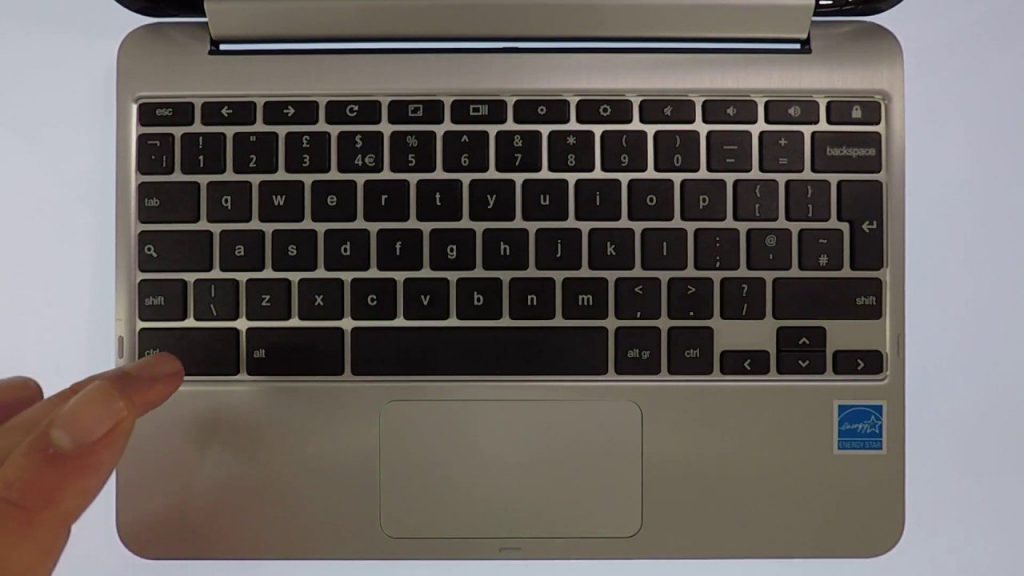
In this video we take a look at a Google Shell command called “Uptime“. The aim of this command is to allow you to see how long a Chromebook has been running and what sort of loads your computers CPU’s are processing. This makes the information in Uptime, a useful diagnostic tool to determine why a Chromebook is not performing as well as it should. The Uptime command will also work on computers running macOS and Linux.
Notes: While similar to the Command Prompt in Windows or the Terminal in macOS. The Crosh (Chromium OS shell) is the command line interface for Chrome OS. However, as the Crosh has been locked down by Google, it is not as powerful as the Shells in other operating systems. This means that the CROSH is mostly used if you need to troubleshoot a Chromebook.


