





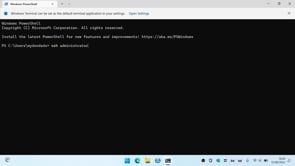
While you should be able to use Disk Station Manager to configure and user your Synology NAS, some prefer to use a command prompt. So in these instances, you can use SSH which creates a secure tunnel through which you access your NAS.
On rare occasions, you might have to view or modify a file or folder that DSM does not have permissions to access. In this instance, you will need to use the Root account on your NAS. However, as you can’t access Root from within the DSM, you are going to need to use Secure Shell (SSH).
So in this video we demonstrate how you enable SSH, change firewall settings and create a secure SSH tunnel using Windows Terminal.
Notes: The Root account gives you virtually unlimited access to all programs, files and resources on your Synology NAS. So when using commands with root you need to be extremely careful to not damage system files.


