Listen to My Spotify Playlist
Follow Me on Bluesky
Get Inspiration on Pinterest
Chat and Connect in Discord
How to turn off the Startup screen in MS Excel
How to turn off the Startup screen in MS Excel
Play

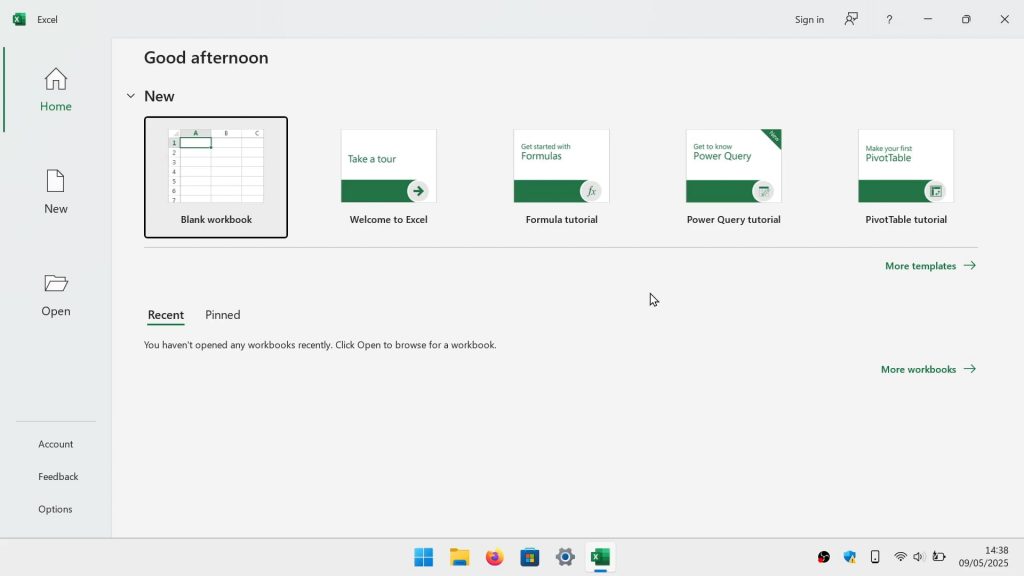
By default when you start Microsoft Excel, you are presented with a startup screen. While the aim of the startup screen is to help you get started with creating or editing a spreadsheet. It can be distracting and unnecessary. So in this video we demonstrate how you can turn this feature off.

  • Open Microsoft Excel so that it displays the Startup screen.
  • On the right side of the screen you will find a side bar. In the bottom section you will find Options.
  • Click on Options and a panel will appear.
  • In General scroll through the options and locate the heading Start up options.
  • Remove the tick from the setting Show the Start screen when this application starts.
  • Click OK.

Note: Now when you start Excel, instead of the Start screen you will be presented with a blank page. However, if you need to view the Startup screen, for example to load a template. Simply Click File, in the menu bar of Excel.