

Listen to My Spotify Playlist
Follow Me on Instagram
Get Inspiration on Pinterest
Chat and Connect in Discord

MS Excel | combine data with the CONCAT function

Play

As you become more proficient with Microsoft Excel, it’s conceivable that you might find yourself in a situation where you need to concatenate. Which is where we link or chain together data into a series. For example you might need to chain together someone’s first and last name, so that you have their full name.

Note: In Microsoft Excel the CONCATENATE function is in the process of being deprecated in favour of CONCAT. While the two commands will do the same thing. Microsoft recommend that you use CONCAT rather than CONCATENATE, as Excel will eventually no longer recognise CONCATENATE.
The syntax for the CONCAT formula is as follows:

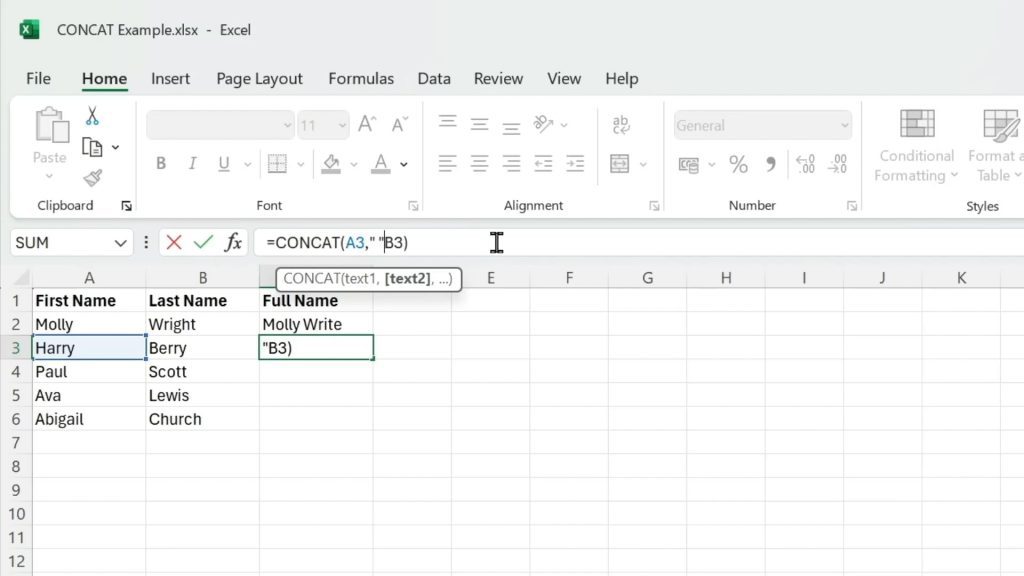
=CONCAT(text1," ",text2)

Note: After instructing Excel to use the CONCAT function. We then need to tell Excel what will be the first piece of data we will be joining together. Next we have a comma which instructs Excel to move onto the next action. The space between the quote marks, then tells Excel to add a space, before it joins the first piece of data with the second.

With this being an example of an actual CONCAT formula:

=CONCAT(A1," ", A2)

Note: We can also use commas and quote marks to create sentences for data. For example:

=CONCAT("Welcome ",A1," ",A2,"!")
Add a comment

Leave a Reply

Your email address will not be published. Required fields are marked *