



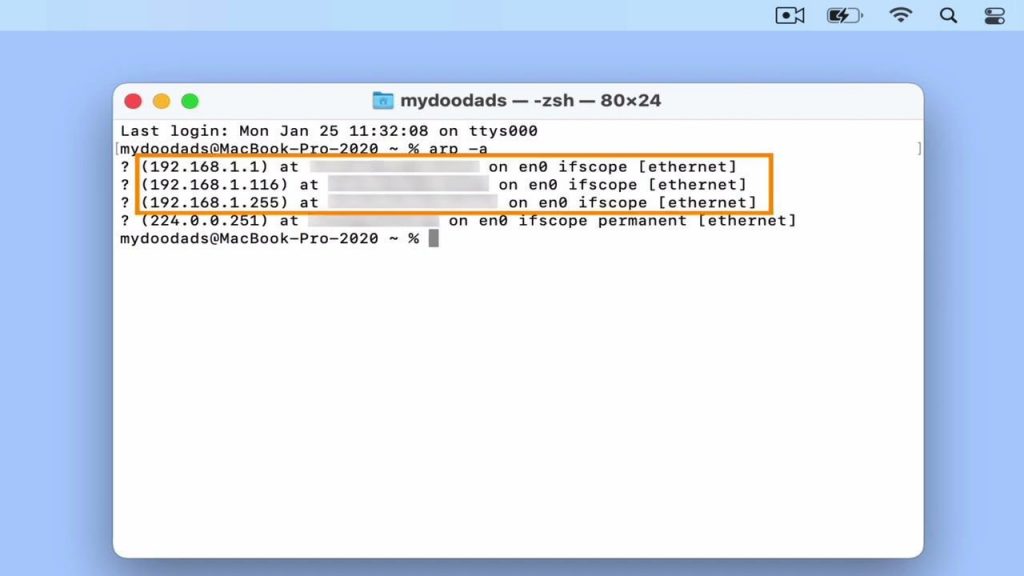
In this video, we’ll explore a terminal command that lets us see the IP and MAC addresses of devices on our home network. Think of an IP address as a device’s phone number, and the MAC address as its name. We can use ARP to find out which devices are on our network.
ARP stands for Address Resolution Protocol. It’s like a map that helps us find the MAC address of a device based on its IP address. A MAC address is like a unique ID for a device’s network adapter. So, with ARP, we can ask the network to show us the connection between these two pieces of info.
The ARP command is a handy tool for figuring out what’s connected to a network. For instance, if you want to connect to a Synology NAS, you need its IP address. But if you know its MAC address, you can use the ARP command to find its IP.