





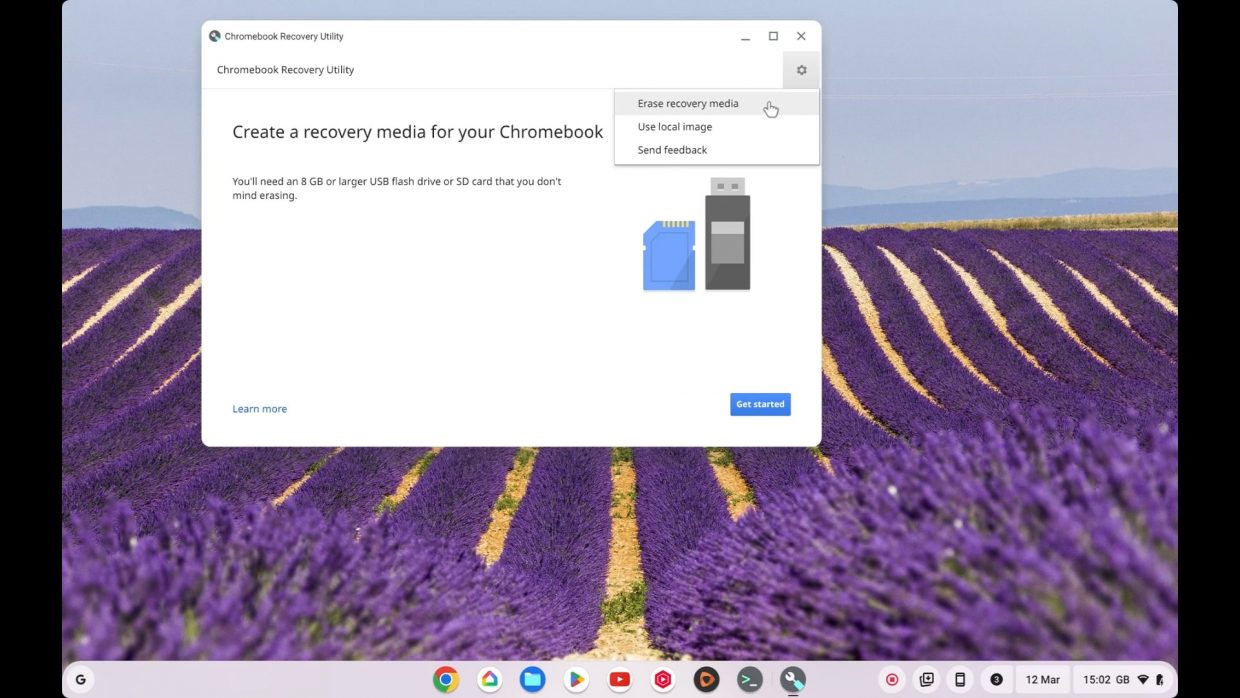
In this video, we demonstrate at how you can create a bootable recovery flash drive for your Google Chromebook or ChromeOS device.
Notes: The recovery disk will allow you to restore your Chrome OS device should the operating system become corrupt. The type of problem you can fix include:
- ‘An unexpected error has occurred’
- ‘Please remove all connected device and start recovery’
- ‘The device that you inserted doesn’t contain ChromeOS’
- ‘The security module on this device isn’t working’
You can also use the recovery media to return a Chromebook back to its factory default state. This could be useful if you want to perform a clean install on your Chromebook before you sell, give away or decommission it.
Note: We recommend that you use a 16GB flash drive or SD card. The storage you use should also be blank as creating the recovery media will wipe your SD card or USB flash drive.
- From within a Google Chrome browser install the Chromebook Recovery Utility.
- Now open the Chromebook Recovery Utility and select Get Started.
Note: While not necessary, we like to click on the Settings icon and from then drop down menu choose Erase recovery media, before we create our recovery media. Which is something that is particularly important if you are working from something that is not a Chromebook.
- After clicking on Get Started. You will need to identify the Chromebook you are creating a recovery disk for. If in doubt choose the option “Select a model from a list“.
- After selecting Continue you will be prompted to Insert a USB flash drive or SD card.
- Click Continue to see the Create a recovery image screen. Where by clicking Show advanced settings, you can choose what type of ChromeOS you wish to use. We recommend using Stable.
- After selecting Create now our recovery disk is created.
Note: While it may look like nothing is happening, as the status bar does not move. This is because a copy of ChromeOS is being downloaded from the internet. So be patient as the down load can take a while, for example our download took 10 minutes.
- When prompted that “Success! Your recovery media is read” You can remove the recovery media from your computer.
- Keep your recovery media in a safe place until you need it.
- Chrome Web Store – The Chromebook Recovery Utility.
- Amazon – DataTraveler 100 G3 USB flash drive.
- Mydoodads article – Factory reset (PowerWash) a Google Chromebook.
- Mydoodads article – How to boot to Recovery Media on a Google Chromebook.
- Mydoodads article – How to perform a diagnostic test on a Google Chromebook.
- Google support article – Recover your Chromebook.
- Google website – ChromeOS features.
- mydoodads – How to de-register and factory reset a Chromebook or ChromeOS device.


