

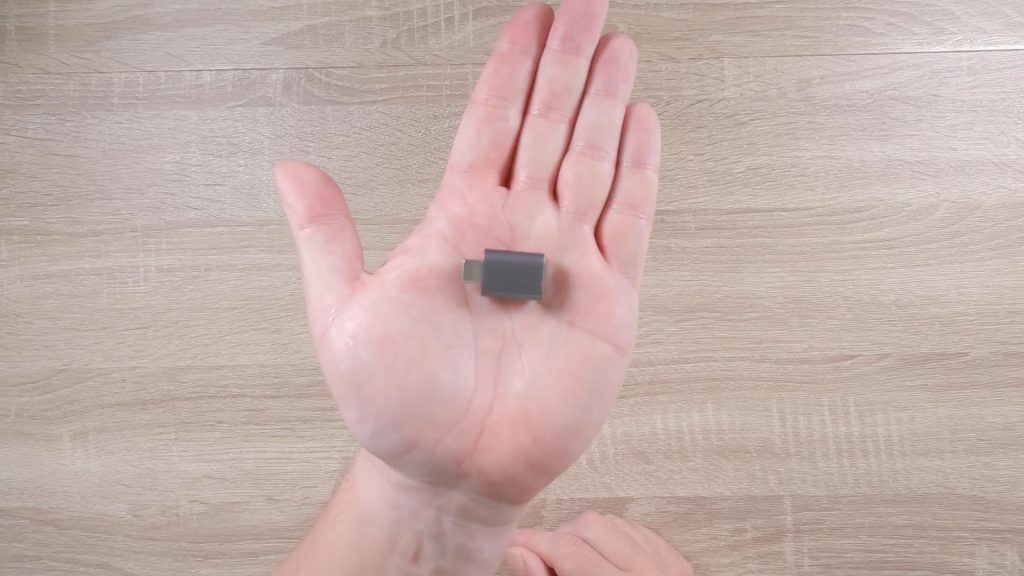




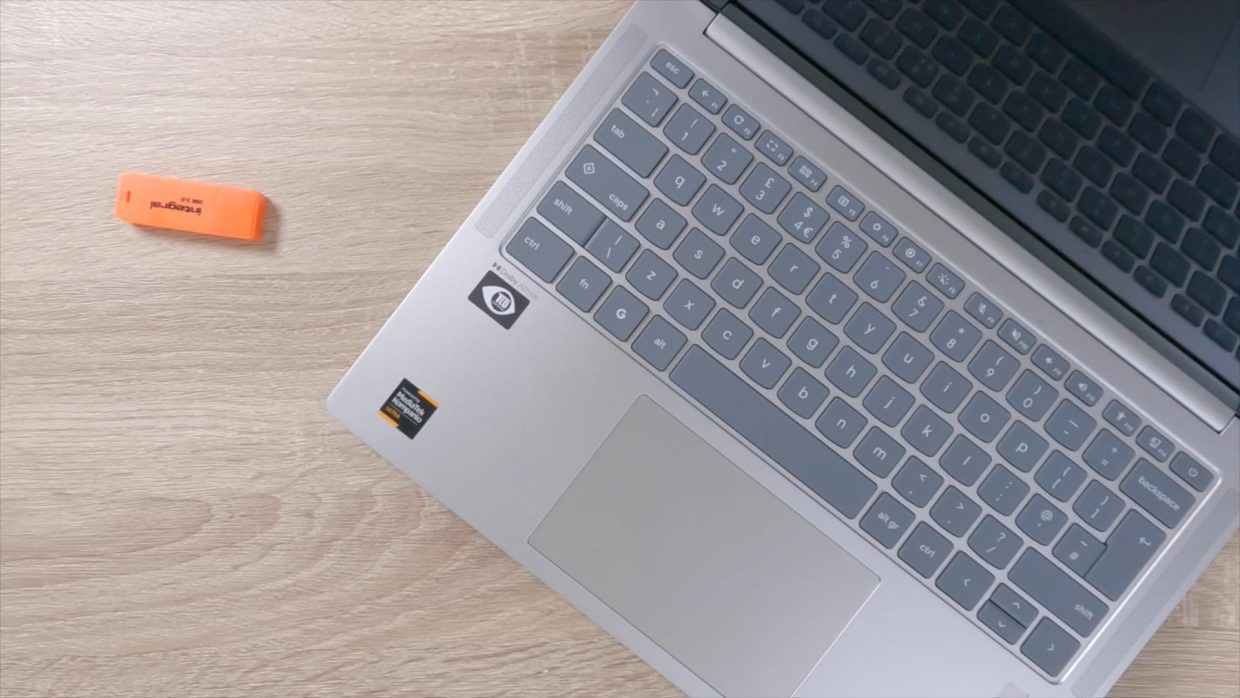
In this video we take a look at how you reinstall ChromeOS onto a Google Chromebook. However, in order to complete this procedure, you will have to have created the bootable recovery media for your model of Chromebook. If you would like more information on how you create the bootable recovery media, please see this video.
Note: Reinstalling ChromeOS, is a good alternative to performing a Powerwash. This is because part of the process when reinstalling ChromeOS, will be to delete all data stored on that Chromebook. However, if you sign into the Chromebook with your Google account, your data should be restored.
- Power down your Chromebook.
- Insert the bootable recovery media you created for your Chromebook
- Now while holding down on the Refresh and F2 buttons on your keyboard, press and release the Power button on your Chromebook.
- Your Chromebook will automatic wipe and then reinstall ChromeOS.
- System restore process will take roughly 5 to 10 minutes to complete.
- When prompted you can remove your recovery media and restart your computer.
- Chrome OS will now load the default Welcome to ChromeOS wizard page.
- mydoodads – How to de-register and factory reset a Chromebook or ChromeOS device
- mydoodads- How to create the bootable recovery media for your Chromebook
- Google store – Chromebook Recovery Utility
- website – Meet ChromeOS.
- webiste – Create the USB installer.


