
Listen to My Spotify Playlist
Follow Me on Instagram
Get Inspiration on Pinterest
Chat and Connect in Discord
How to find your computers device name using a macOS Terminal command

How to find your computers device name using a macOS Terminal command

Play

In this video, we’ll explore a macOS terminal command that’ll help us discover our computer’s unique name. This Computer Name is like a special label that helps us find our devices on a network. Knowing your computer’s name can be super helpful when you’re troubleshooting networking issues.

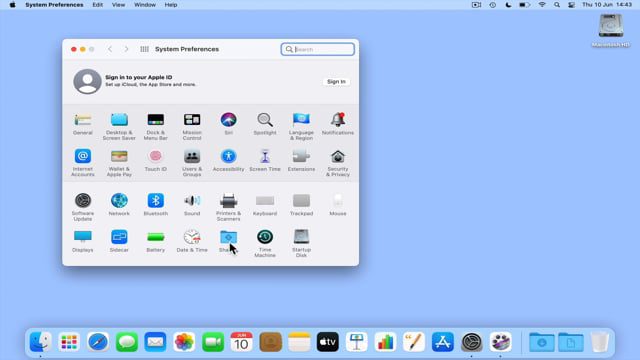
Note: On macOS you can also find or change your computer name from within System Preferences. This is done by selecting System Preferences – Sharing – Computer Name

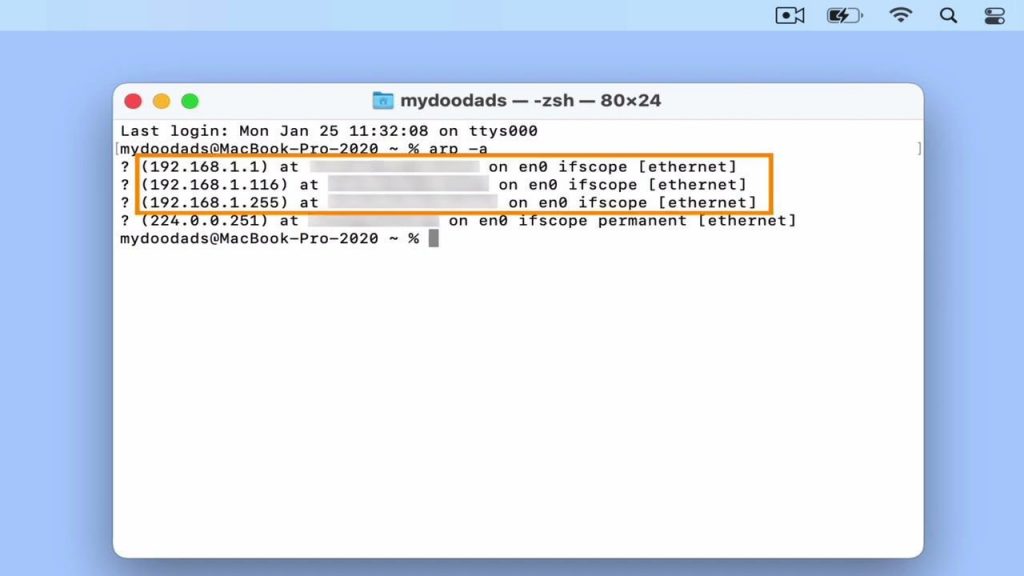
  • From your macOS desktop, select Spotlight Search.
  • Within Spotlight Search type Terminal and press Enter on your keyboard
  • Now at the command prompt type.

Note: You may need to use the sudo command to elevate permissions. This is in order to run the scutil command.

 sudo scutil --get localHostName
  • When you press Enter on the keyboard you will be presented with the computer name of your computer.
  • As this command is difficult to remember, the following will also work
hostname
  • To gracefully close your current Terminal session type:
exit

When you press Enter on your keyboard the Terminal session will end and you can close the Terminal application.