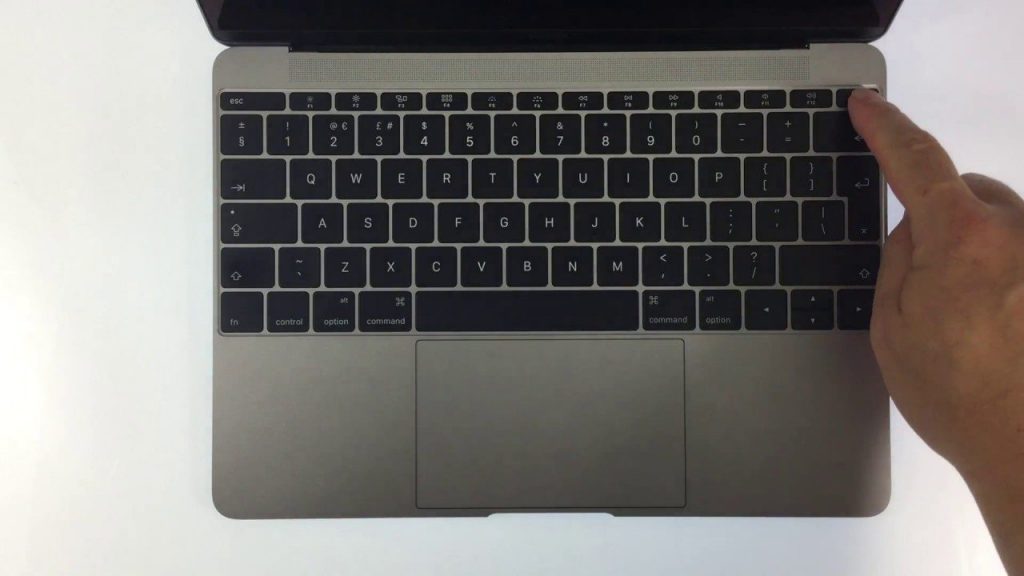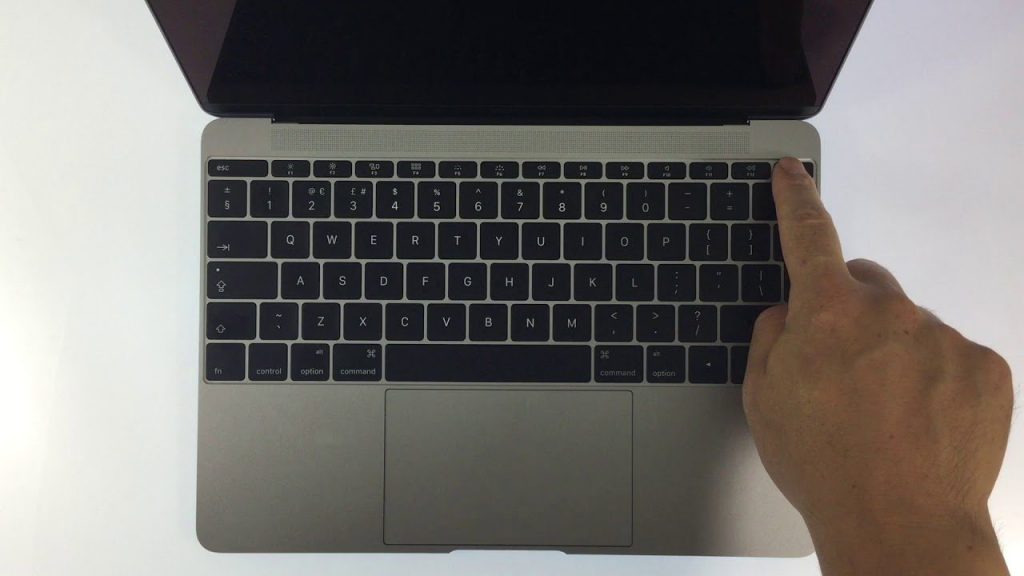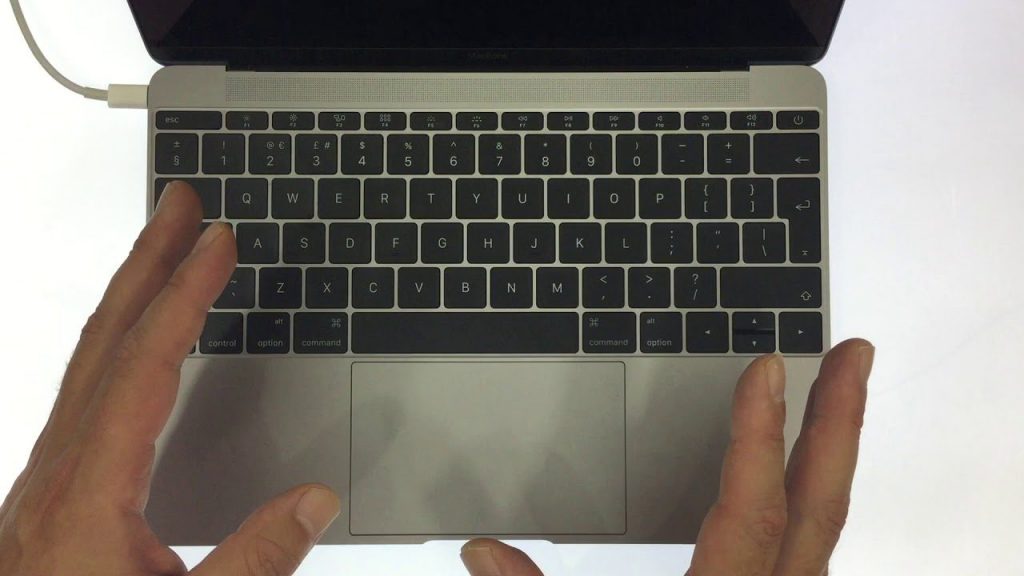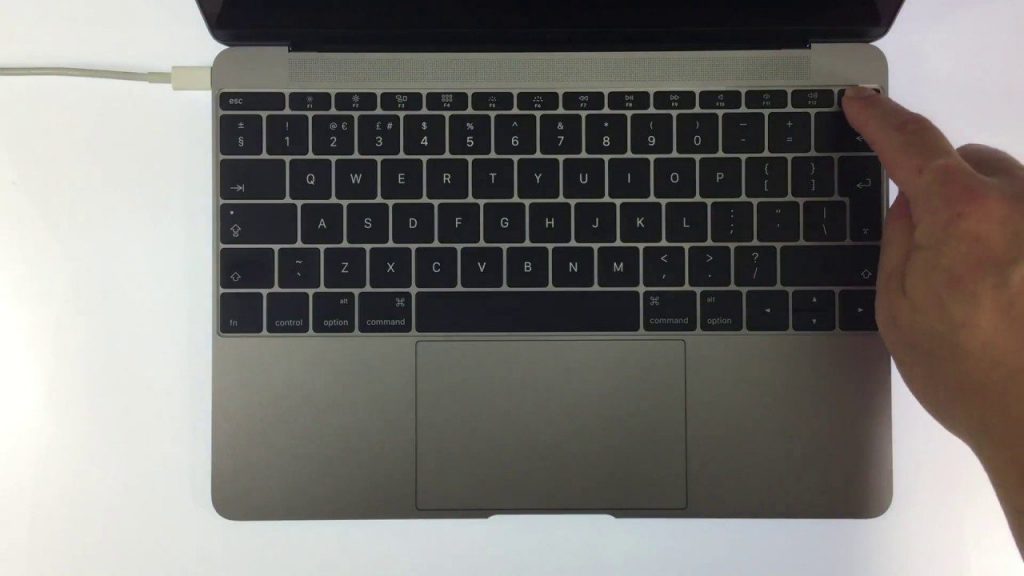
If you think your Apple Mac might be acting up, there’s a handy tool built into macOS called Apple Diagnostics. It’s like a detective that can help you figure out what’s causing the issue and find any system failures.
A diagnostic test will take roughly 2 to 5 minutes and will check the RAM, power controller, logic board, battery and wireless modules on your computer. If an error is found you will be presented with a reference code. You can either research that code yourself, or present to an Apple certified engineer so they can help you.
Note: Just a heads up, the method shown in this video is for accessing Apple Diagnostics on an Apple Macintosh computers with Intel hardware. If you have an Apple Macintosh computer with Apple Silicon hardware, the process is a bit different.