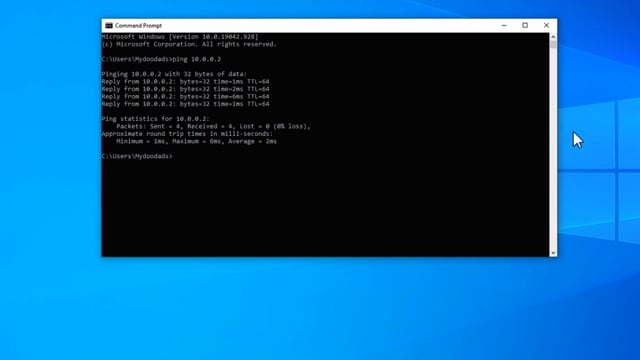
In this video, we take a look at a Windows command that will allow you to Ping other devices on your home network. Typically you would use the Ping command to see if another device is reachable on your network or in order to troubleshoot a connection issue.
- From the Windows desktop, select Search and either type: Command Prompt or Terminal.
- Highlight the first result from your Search and press Enter on your keyboard.
- When the Command Prompt/Terminal window open type the following:
ping [ipaddress or domain name]Note: The Ping command will allow you to ping via IP address or domain name. The command can also be used from within either the Command Prompt or a Window Terminal.
- When you press Enter on the keyboard the device being pining will be pinged 4 times and report displayed on screen.
- To gracefully closethe Command Prompt type:
exit- When you press Enter on your keyboard the Command Prompt window close.
- Use either -t or /t to specify that your ping continually sends pings to a device. You can stop sending pings press CTRL + C on your keyboard, or by closing the terminal window.
ping -t [ipaddress or domain name]- Use either -n or /n to specify a specific number of pings be sent to a device. The default is 4.
ping -n [number of pings] [ipaddress or domain name]- mydoodads article – Quickly renew an IP address in Windows using the Terminal.
- mydoodads article – Flush Windows DNS cache using IPconfig.
- mydoodads article – How to clear WiFi profiles using Windows Terminal.
- mydoodads article – How to quickly find your IP address using the Windows Terminal.
- mydoodads article – How to check which Wi-Fi standards Windows supports.
- Microsoft article – Windows commands.
- Microsoft article – Ping.
- Wikipedia article – cmd.exe.