Buy us a Ko-Fi
Or support us via PayPal
Or buy from Amazon to help keep this site ad free
to our site members
How to make Edge the default browser on your Apple iPad

How to make Edge the default browser on your Apple iPad

By default Safari is the main internet browser installed on an Apple iPad. However, if you would prefer you can download and use a different browser. So in this video we take a look at how you make Microsoft Edge the default browser on an iPad. 

Notes: While you can use an alternative web browser other than Safari with your iPad. It would appear that third party web browsers like Edge, have to conform to Apple’s rules with regards to applications. This means that Edge is forced to use WebKit as its browser engine. So the instance of Edge on your iPad may not be as feature rich as Edge on a computer. 
From your iPad download Edge from the Apple App Store

Locate and choose Settings

From the Settings sidebar, locate and choose the Edge app

Change the option Default Browser App to Edge

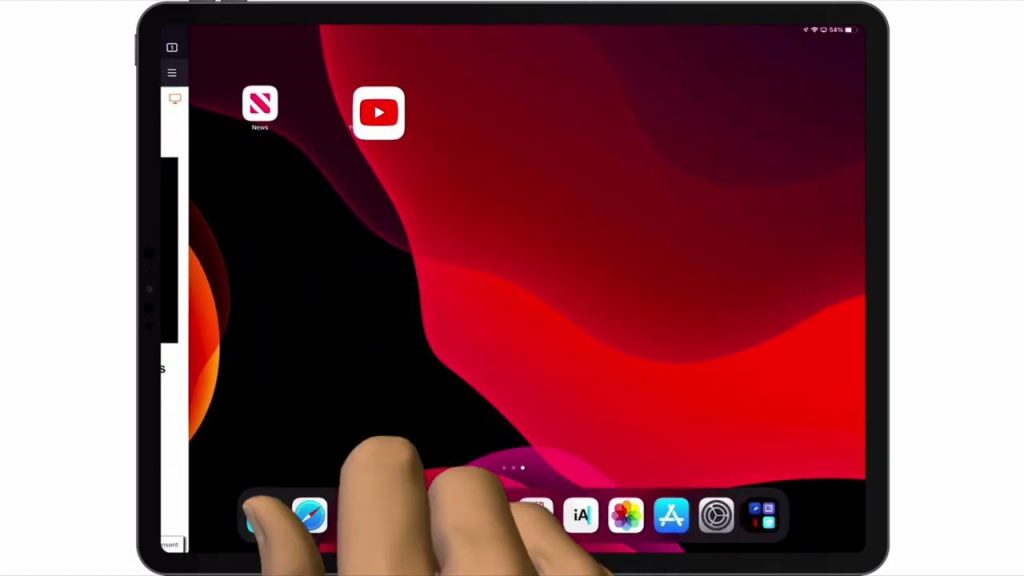
Return to the Home Screen

Away from any icons on the Home Screen, press and hold your finger on the screen

When the icons start to jiggle release your finger

Move the Safari app from your Dock

Place the Edge app in your Dock

Notes: Unfortunately, because Safari is integrated into iPadOS, you are not able to delete the Safari app. So we recommend that you hide the Safari app in a folder. 

  • Away from any icons on the Home Screen, press and hold your finger on the screen
  • When the icons on the Home Screen start to jiggle release your finger
  • Using your finger press and hold the Safari icon
  • Move the Safari icon into another icon that you want to have in your new folder
  • A folder will be created

Notes: Once the folder (grouping) has been created you can move other icons into that folder 

Add a comment

Leave a Reply

Your email address will not be published. Required fields are marked *