
Listen to My Spotify Playlist
Follow Me on Bluesky
Get Inspiration on Pinterest
Chat and Connect in Discord
Microsoft Excel | the Transpose function

Microsoft Excel | the Transpose function

Play

Before you can start to process data in Microsoft Excel. You may find that you need to re-orientate your data, so that it appears in columns rather than rows, or vice versa. So in this video, we take a look at the three different TRANSPOSE options in Excel.

Note: In Excel the term RANGE and ARRAY are often used interchangeably. However a Range is a physical block of cells in a worksheet. While an Array is a set of values stored in Excels memory ready for use in calculations. So you may not see the contents of an Array on your worksheet. But the results from the Array will be represented in that worksheet.

  • Highlight the cells you wish to flip.
  • With the mouse pointer held over the highlighted cells, Right click your mouse.
  • From the Quick menu that appears, choose Copy.
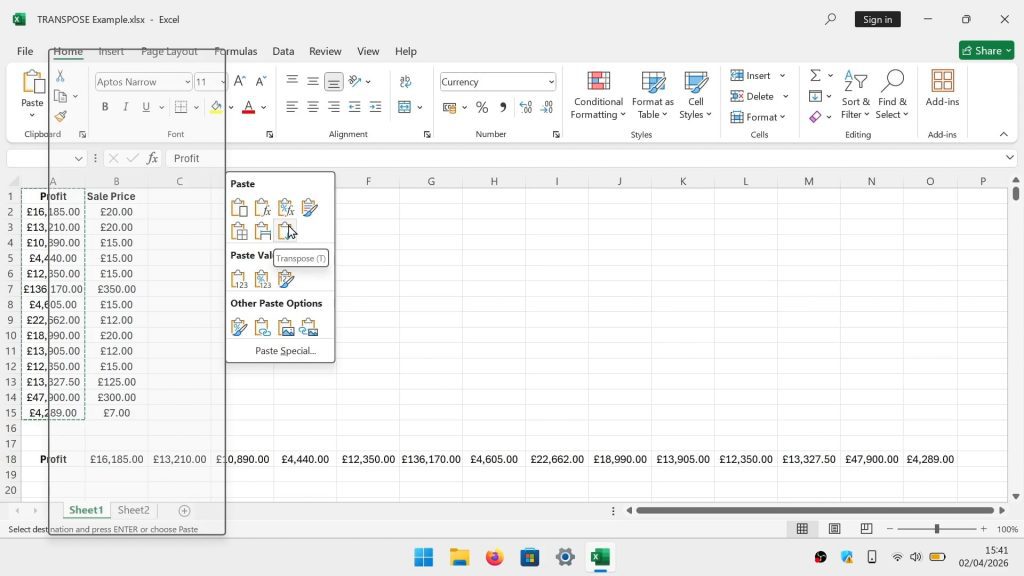
  • Click on the cell where you wish your Transposed data to be placed.
  • Right click your mouse again.
  • From the Quick menu locate Paste Options.
  • Now either select the Transpose icon or if you dont see it click on Paste Special.
  • Within Paste Special you will see all paste options including the Transpose icon.
  • Click the Transpose icon to place a copy of your fliped data onto your spreadsheet.

Note: Unlike Copy and Paste, the TRANSPOSE function will allow your tables of data to become dynamic. In other words, if we use the TRANSPOSE function, whats updated in the original data set, will automatically be updated in our transposed data set.

The Syntax for the TRANSPOSE function is as follows:

=TRANSPOSE(array)

With this being an example of an actual TRANSPOSE formula, used to flip a column of data into a row:

=TRANSPOSE(A1:A10)

  • With your spreadsheet open, select the Data tab and choose Get Data from the Ribbon.
  • Using the drop down menu that appear select From Other Sources and choose From Table/Range.
  • When prompted to create a table, use your mouse pointer to highlight the data you are looking to transpose.
  • Click OK.
  • When the Power Query Editor opens, your highlighted data will automatically get converted into a table.
  • Select the Transform tab, and click on Transpose in the Ribbon.
  • The data in your table will change orientation.
  • Use the mouse to click on File and choose Close and Load.
  • The table in the Power Query Editor will now get copied into its own worksheet.