

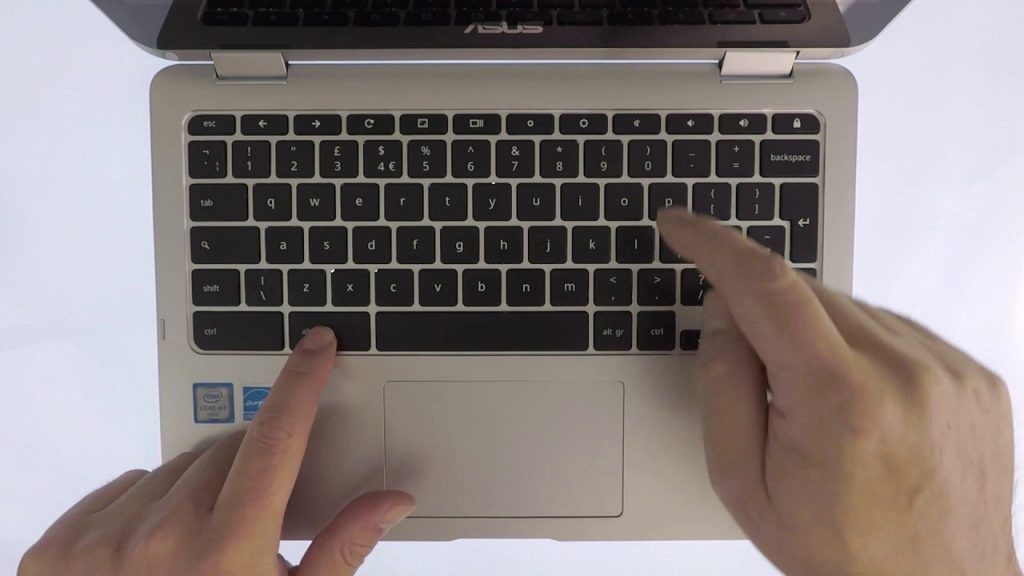
If your Chromebook has a Backlit keyboard, you might have wondered how you can adjust its brightness, or turn it off completely. So in this video, we demonstrate which combination of keyboard buttons you have to press in order to change the brightness of your keyboard.
Notes: Not all models of Chromebook have a Backlit keyboard as standard, so please check the specifications of your Chromebook before attempted this tip. It’s also worth noting that turning off your Backlit keyboard can help to save battery life, so is an option to consider using as your battery drains.